

Build the links that help visitors move around your site, then place your menu in the header or footer.
A menu is the set of links that helps visitors move around your website, usually shown across the top or in the footer. A clear menu is like good signage in a shop: it points people to exactly what they are looking for.
This guide shows you how to create a new menu, add and arrange its links, attach it to a location on your site, and edit it later. Every step uses the built-in WordPress menu tools, with no code required.
Where Menus Live in WordPress #
Before building one, it helps to know where the menu controls are.
Opening the Menus Screen #
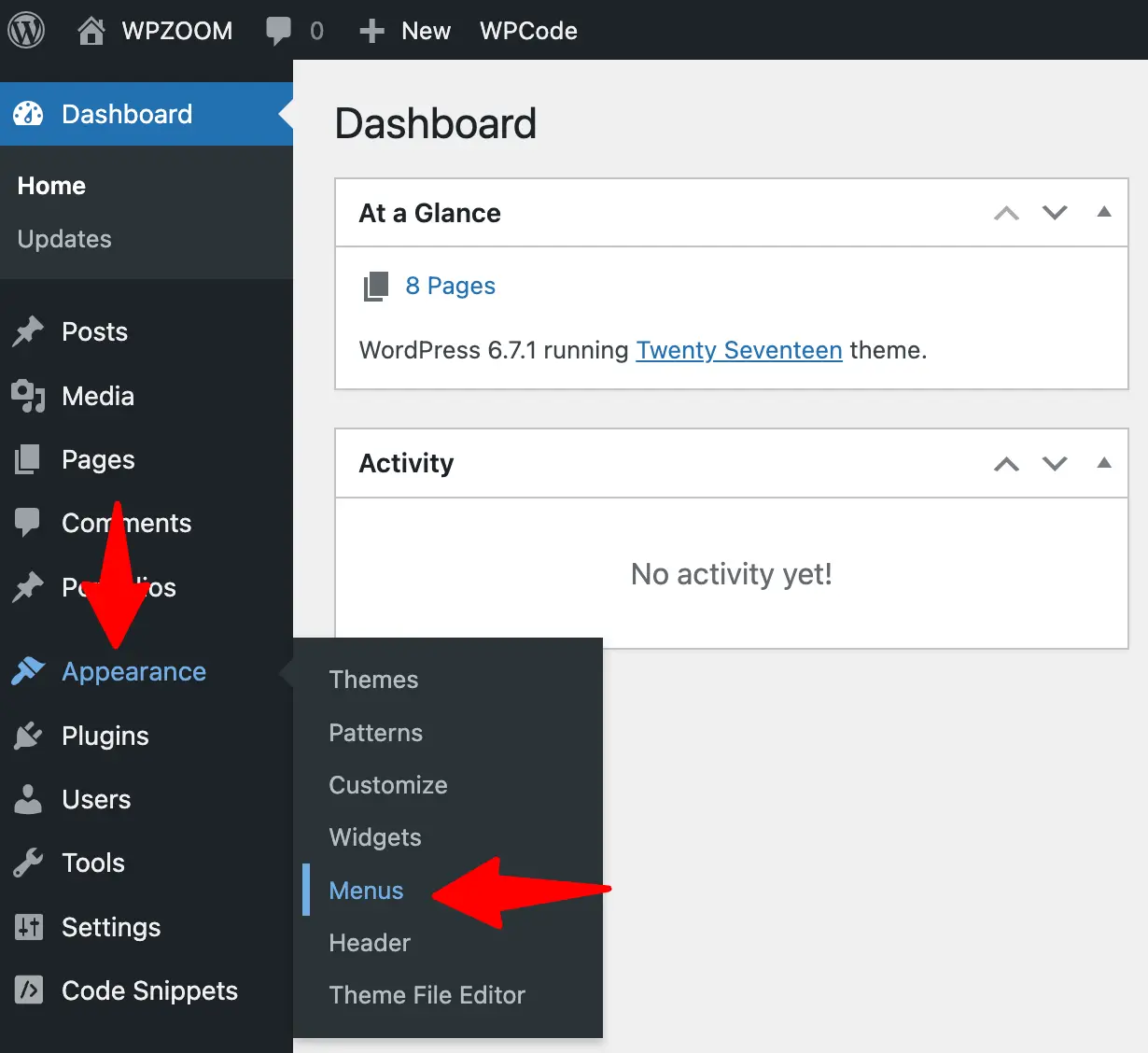
In the left-hand menu of your dashboard, click Appearance, then Menus. This opens the menu editor, where all your menus are managed.
Some newer themes use the Editor (full site editing) for menus instead of this screen. If you do not see Appearance, then Menus, your site may use the Editor or a page builder like Elementor. The ideas in this guide still apply.
How to Create a New Menu #
Creating a menu is the first step before you can add any links.
Step 1: Start a New Menu #
On the Menus screen, click create a new menu near the top.
Step 2: Give It a Name #
Type a clear name in the Menu Name box, such as Main Menu or Footer Menu. This name is for your reference only and is not shown to visitors.
Step 3: Click Create Menu #
Click the Create Menu button. You now have an empty menu, ready for links.
Name your menus by where they appear, like Header Menu and Footer Menu. It saves confusion when your site has more than one.
How to Add Links to Your Menu #
A menu is only useful once it holds links. WordPress lets you add several kinds.
Adding Pages #
In the Add menu items panel on the left, open the Pages section, tick the pages you want, then click Add to Menu. The selected pages appear in your menu on the right.
Adding Posts and Categories #
Open the Posts or Categories sections the same way to add a blog post or a whole category of posts to your menu.
Adding a Custom Link #
Use a Custom Link to point to any web address, including a page on another website.
How to Add a Custom Link #
- Open the Custom Links section.
- In the URL box, type the full web address, for example https://yourbusiness.com/shop.
- In the Link Text box, type what the link should say, such as Shop.
- Click Add to Menu.
How to Arrange Your Menu #
The order of your links is the order visitors see, so arranging them matters.
Reordering Links #
Click and drag any menu item up or down to change its position. The top item appears first, usually on the left of your menu.
Renaming a Link #
Click the small arrow on a menu item to expand it, then edit the Navigation Label. This changes the wording visitors see without changing the page it links to.
Removing a Link #
Expand the item and click Remove. This takes the link out of the menu but does not delete the page itself.
Removing a link from a menu never deletes the page. The page stays on your site and can be added back any time.
How to Choose Where the Menu Appears #
A menu does nothing until you assign it to a location, such as your header or footer.
Setting a Display Location #
At the bottom of the menu editor, under Menu Settings, tick a Display location such as Primary Menu or Footer Menu, then save.
Saving Your Menu #
Click the blue Save Menu button to apply all your changes.
Visit your live site and your menu appears in the chosen location with your links in the order you set.
How to Edit an Existing Menu #
Updating a menu later is just as easy as building one.
- Go to Appearance, then Menus.
- If you have more than one menu, choose the one you want from the Select a menu to edit dropdown and click Select.
- Add, reorder, rename, or remove items as needed.
- Click Save Menu to apply your changes.
Frequently Asked Questions #
Why Is My Menu Not Showing on the Site? #
The most common reason is that the menu has not been assigned to a display location. Open the menu, tick a location under Menu Settings, and save.
Can I Have More Than One Menu? #
Yes. Many sites use a separate header menu and footer menu. Create each one, then assign it to its own display location.
I Removed a Page From My Menu, Is It Deleted? #
No. Removing a link only takes it out of the menu. The page is still on your site, and you can add it back to the menu whenever you like.