

Build, update, copy, and safely remove the pages that form the backbone of your website.
Pages are the backbone of your website. They hold your fixed, important content, such as your Home, About, Services, and Contact pages.
Knowing how to create, edit, duplicate, and safely remove pages gives you full control over your site’s structure. By the end of this guide, you will be able to build a new page, update an existing one, copy a page to save time, and delete or restore pages without fear of losing your work.
Pages vs Posts: A Quick Reminder #
Before you start, it helps to know the difference. A page is fixed and timeless, like your About page. A post is a dated blog entry that appears in your news feed. This guide covers pages. For a fuller explanation, see the guide Understanding Your WordPress Dashboard.
Pages and posts are edited in the same way, so most of these steps apply to posts too.
How to Create a New Page #
Building a new page takes only a few minutes once you know the steps.
Step 1: Open the Pages Screen #
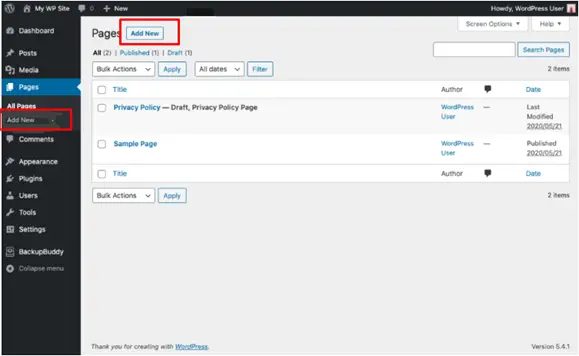
In the left-hand menu of your dashboard, click Pages. You will see a list of every page on your site.
Step 2: Click Add New Page #
At the top of the screen, click the Add New Page button. A blank editor opens, ready for your content.
Step 3: Add a Title #
At the very top of the editor, type your page title where it says Add title. For example, type About Us. The title helps both your visitors and search engines understand the page.
Step 4: Add Your Content #
Below the title, click into the body area and start typing. WordPress builds pages from blocks, where each paragraph, image, or heading is its own block.
Working With Blocks #
A block is a single piece of content you can move and style on its own. Think of blocks like LEGO bricks: you stack them to build a page.
Adding a Block #
Click the plus (+) button, then choose a block type such as Paragraph, Heading, or Image.
Moving a Block #
Hover over a block, then use the up and down arrows, or drag the block by its dotted handle, to move it.
Step 5: Preview and Publish #
When the page looks ready, click Preview to see how it will appear to visitors. If you are happy, click the blue Publish button, then confirm by clicking Publish again.
A success message appears with a link to view your live page.
How to Edit an Existing Page #
You will edit pages far more often than you create them. The process is quick.
Step 1: Find the Page #
There are two easy ways to open a page for editing.
Using the Pages List #
Click Pages in the left-hand menu, then click the title of the page you want to change.
Editing From the Front End #
While viewing the live page and logged in, click Edit Page in the admin bar at the top of the screen. This jumps you straight into the editor for that page.
Step 2: Make Your Changes #
Click any block to edit its text, swap an image, or adjust a heading. Add new blocks wherever you need them.
Step 3: Update to Save #
Click the blue Update button in the top-right corner to save your changes and push them live.
On a page that is already published, the Publish button becomes Update. Clicking Update saves your edits to the live page right away.
How to Duplicate a Page #
Duplicating copies a whole page so you can reuse its layout instead of building from scratch.
Why Duplicate a Page #
If two pages share a similar design, such as several service pages, copying one and editing the text is much faster than starting over.
Using a Duplicate Plugin #
WordPress does not include a duplicate button by default, so you add one with a small plugin.
- Go to Plugins, then Add New, and search for a page duplication plugin.
- Install and activate it.
- Open the Pages list. Hover over a page and click the new Duplicate link.
- A copy appears as a draft, ready for you to edit and publish.
Rename the duplicated page straight away so you do not confuse it with the original.
How to Delete and Restore a Page #
Removing a page is safe, because WordPress keeps deleted pages in a Trash folder before erasing them for good.
How to Move a Page to Trash #
In the Pages list, hover over the page you want to remove, then click the red Trash link. The page leaves your live site immediately but is not gone forever yet.
How to Restore a Page From Trash #
- At the top of the Pages list, click the Trash link to view trashed pages.
- Hover over the page you want back and click Restore.
- The page returns to your list, exactly as it was.
How to Permanently Delete a Page #
Inside the Trash view, click Delete Permanently to erase a page for good.
Permanently deleting a page cannot be undone. Make sure you no longer need it before you confirm.
Frequently Asked Questions #
What Is the Difference Between Save Draft and Publish? #
Save Draft stores your work privately so only you can see it. Publish makes the page visible to the public. Use Draft while you are still working, then Publish when it is ready.
Can I Edit a Page Without It Going Live Immediately? #
Yes. If a page is already published, your changes only go live when you click Update. To work privately, switch the page back to a draft first, or build a brand new draft page.
I Deleted a Page by Mistake, Can I Get It Back? #
Usually, yes. Open Pages, click the Trash link, find your page, and click Restore. As long as you have not permanently deleted it, your page is safe.